
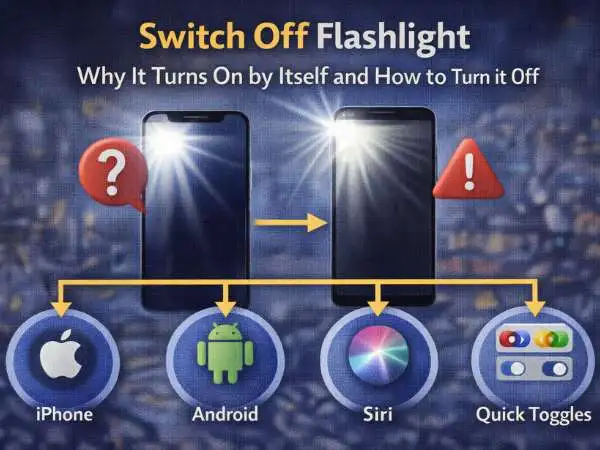

There’s something oddly frustrating about pulling your phone out of your pocket and realizing the flashlight has been on for who knows how long. Your battery is suddenly lower. The back of your phone feels warm. And you’re left wondering how it even turned on in the first place.
The smartphone flashlight is one of the most useful features built into modern devices. It’s instant, bright, and always available. But the very thing that makes it convenient — quick access — also makes it easy to activate by mistake.
Search data shows that thousands of people regularly look for phrases like “turn off the flashlight Siri,” “turn off flashlight on iPhone,” “turn off flashlight on Android,” or “turn off the flashlight Google.” That tells you something important: this small feature creates a surprisingly common usability problem.
Let’s unpack why that happens — and how to switch it off properly across different devices.
Why the Flashlight Turns On So Easily in the First Place
Smartphone manufacturers deliberately made the flashlight fast to access. In an emergency, you don’t want to unlock your phone, scroll through apps, and find a toggle. You want light instantly.
On iPhones, the flashlight icon sits directly on the lock screen. A firm press activates it — even when the device is locked.
On Android phones, the flashlight is accessible through quick settings with a simple downward swipe. Some models even support gesture activation, like shaking the phone.
These shortcuts are intentional design choices. The tradeoff? Accidental activation.
A tight pocket. A bag pressing against the screen. A half-second long press without realizing it. That’s often all it takes.
also read : – Best Free Weather Apps for iPhone Users – Real-Time Alerts & Forecasts
Turn Off Flashlight on iPhone: The Lock Screen Confusion
If you’re trying to turn off flashlight on iPhone, chances are it was activated from the lock screen.
The flashlight control appears in the bottom-left corner of modern iPhones. What many users don’t realize is that it doesn’t respond to a light tap. It requires a firm press and hold.
That distinction matters.
A quick tap does nothing. A press-and-hold toggles the light off.
This design reduces accidental taps — but it also confuses users who expect instant response.
If the lock screen method doesn’t work, opening the Control Center provides a clearer interface. Swipe down from the top-right corner and tap the flashlight icon. If it’s illuminated, it’s active. Tap once to disable.
It’s simple — once you know where to look.
Turn Off the Flashlight Siri: When Voice Control Is Faster Than Touch
Sometimes your hands are busy. Or maybe the screen isn’t responding. That’s when Siri becomes useful.
Saying “Hey Siri, turn off the flashlight” works even when the phone is locked — provided Siri is allowed on the lock screen.
If Siri doesn’t respond, the issue is usually permission-related. Many users disable “Allow Siri When Locked” for privacy reasons. When that setting is off, voice commands won’t control hardware features without unlocking first.
Voice control is often the fastest method — especially at night when you don’t want to look at the screen.
also read : – Snapdrop Alternative: Know About The Alternatives Of This File Sharing Software Here!
Turn Off Flashlight on Android: Quick Settings and Device Variations
Android handles flashlight access slightly differently depending on manufacturer, but the core method remains consistent.
Swipe down from the top of the screen to reveal Quick Settings. If the flashlight icon is visible, tap it to toggle off. If you don’t see it immediately, swipe down again to expand the full panel.
Unlike iPhone, Android does not rely on pressure-sensitive lock screen controls. Instead, it prioritizes the Quick Settings system.
This reduces accidental lock-screen activation — but increases the chance of enabling it while navigating system toggles.
Turn Off the Flashlight Google: Using Google Assistant
Google Assistant functions similarly to Siri for flashlight control.
Saying “Hey Google, turn off the flashlight” works if Assistant is enabled and actively listening.
However, Android’s voice behavior varies more across devices than Apple’s ecosystem. Some phones require internet connectivity for full Assistant functionality. Others allow offline commands.
If the command fails, it’s usually tied to microphone permissions, Assistant configuration, or connectivity.
Turn the Flashlight On or Off With the Quick Toggle
The quick toggle system deserves more attention because it’s central to both activation and deactivation.
On iPhone, the Control Center includes a flashlight toggle alongside Wi-Fi, Bluetooth, and Airplane Mode. On Android, Quick Settings serve the same purpose.
These toggles are persistent. They don’t disappear when the flashlight turns off. That permanence sometimes leads users to believe it’s malfunctioning when in reality it’s simply showing state.
If the icon appears highlighted, it’s active. If it’s not, it’s off.
The visual cue is subtle but consistent.
Why the Flashlight Sometimes Won’t Turn Off
Occasionally, users report tapping the icon repeatedly with no response.
This is usually not hardware failure. Instead, it’s one of the following:
- A frozen system UI
- Background camera process conflict
- Software bug after update
- Rare LED driver glitch
Restarting the phone resolves the majority of cases.
It’s important to understand that the flashlight is directly tied to the camera module’s LED. If the camera app is active or frozen in the background, it can temporarily interfere with LED control.
Accidental Activation: A Design Tradeoff
The number one complaint about smartphone flashlights isn’t brightness. It’s accidental activation.
On iPhone, the lock screen icon placement is convenient — but exposed.
On Android, gesture-based flashlight features (such as shaking the phone on certain models) can lead to unexpected activation in bags or during movement.
Manufacturers balance emergency accessibility against accidental use. There’s no perfect solution.
If accidental activation is frequent, checking gesture settings on Android or adjusting how the phone sits in pockets can reduce incidents.
also read : – How to Ensure Maximum Fire Safety at Your Residential Building
Battery Drain and Heat: The Hidden Cost of Forgetting
The flashlight LED runs at full intensity. Leaving it on for extended periods drains battery quickly and can warm the device.
Many users only realize it was on when battery percentage drops unusually fast.
The LED is efficient, but it’s not negligible. Ten or fifteen minutes of unnoticed activation can meaningfully reduce remaining charge.
This is one reason manufacturers keep flashlight toggles accessible from the lock screen — so it can be shut off quickly without full device unlock.
Flashlight in Emergency and Accessibility Context
The reason flashlight access remains so exposed is safety.
In emergency scenarios, speed matters more than prevention of accidental taps.
Additionally, flashlight features are integrated into accessibility tools for users with visual impairments or mobility limitations. Quick access ensures universal usability.
The occasional accidental activation is, from a design perspective, an acceptable tradeoff for safety and accessibility.
When Software Updates Change Flashlight Behavior
Occasionally after system updates, users report changes in flashlight behavior.
Icons move. Gestures adjust. Control Center layouts shift.
This creates short-term confusion. It’s not that the flashlight is broken — the interface changed.
Keeping the operating system updated remains important, but users should expect minor layout changes between major versions.
also read : – Bubble charts are a great way to visualize data because they can display three dimensions of data at the same time
Final Thoughts: Why Something So Small Causes So Many Searches
Switching off the flashlight should be simple. And technically, it is.
But subtle interface details — like long press versus tap, gesture activation, voice permissions, and quick toggle placement — create friction for users who expect immediate response.
The flashlight represents something interesting about smartphone design. It’s a tiny feature with emergency-level priority access. That priority access makes it easy to trigger and occasionally confusing to disable.
Once you understand how your specific device handles it — whether through Siri, Google Assistant, lock screen pressure, or Quick Settings — the frustration disappears.
And next time your pocket starts glowing, you’ll know exactly what to do.